Let us be honest. Most free streaming apps on Android TV feel like a phone app stretched across a 43 inch screen: tiny text, menus that fight your remote and buffering every few minutes. Castle for Android TV is different, because it is a separate build designed for the TV. Readable menus, smooth remote control, live channels and over 1,00,000 titles in Hindi, Tamil, Telugu and English.
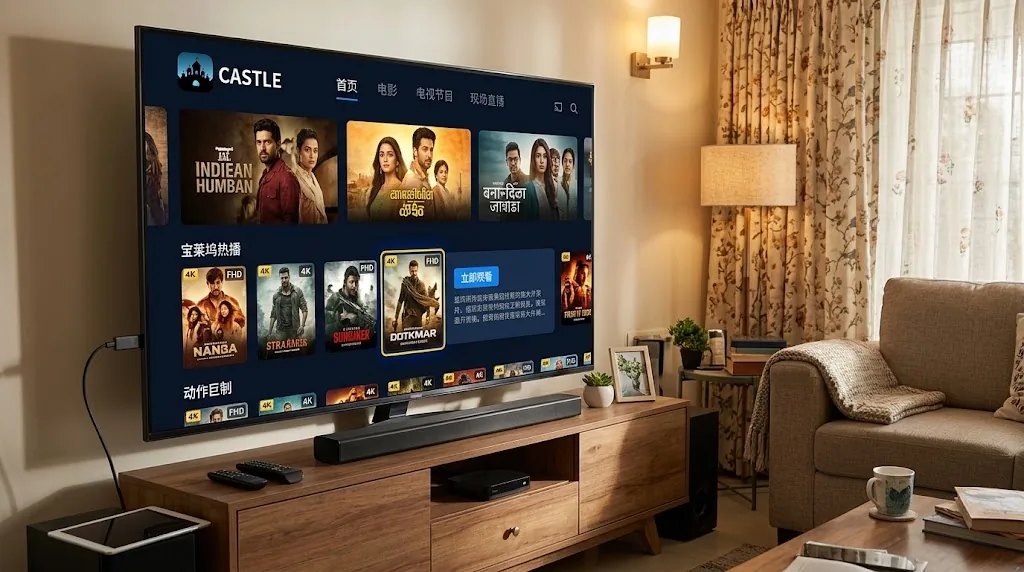
Here are the basics before we start. Castle TV is one single APK. It does not need any extra player app, so one install and you are done.
| App Name | Castle TV |
|---|---|
| Latest Version | v1.1.3 |
| File Size | 21 MB |
| Requires | Android 6.0 or above |
| Price | Free |
| Category | Entertainment |
| Works On | Android TV, Google TV, Android TV boxes, Fire TV Stick |
Castle TV is the free big screen version of Castle, built for Android TV, Google TV and TV boxes. It is not listed on Google Play, so you install it by sideloading the APK, which is a standard feature of Android TV. Using a Fire TV Stick? Follow our Castle for Firestick guide.
The difference is in the details. Text is large enough to read from the sofa, every screen works with the arrow keys on your remote, and categories are laid out for browsing, not tapping.
Castle TV v1.1.3 is the current build for Android TV, Google TV and TV boxes. If you installed an older version, download v1.1.3 and install it over the top. Your app data stays in place.
Not sure which version you have? On your TV, go to Settings, Apps, See all apps and select Castle. The version number appears on the app info screen.
No mouse, no pointer and no guessing. Every menu responds properly to the arrow and OK buttons on your remote.
Switch from a movie to a live channel without leaving the app.
Match days are better on a big TV. Castle keeps sports events in their own section so they are easy to find.
Everyone at home finds something in their language, alongside English movies and series.
Choose HD on a strong connection or a lower quality when the Wi-Fi is busy, all from the player menu.
Many Android TVs and boxes have limited storage. Castle TV takes very little of it.
No account, no payment screen and no ads interrupting your movie.
There are three ways to install Castle TV. All of them work, so pick the one that suits your setup.
The quickest option if your TV already has a browser.
Step 1: Allow Unknown Sources
Go to Settings, Device Preferences, Security and Restrictions, Unknown Sources, and turn it on for your browser. On Google TV, first go to Settings, System, About and press OK seven times on Android TV OS build to unlock developer options. Then go to Settings, Apps, Security and Restrictions, Unknown Sources.
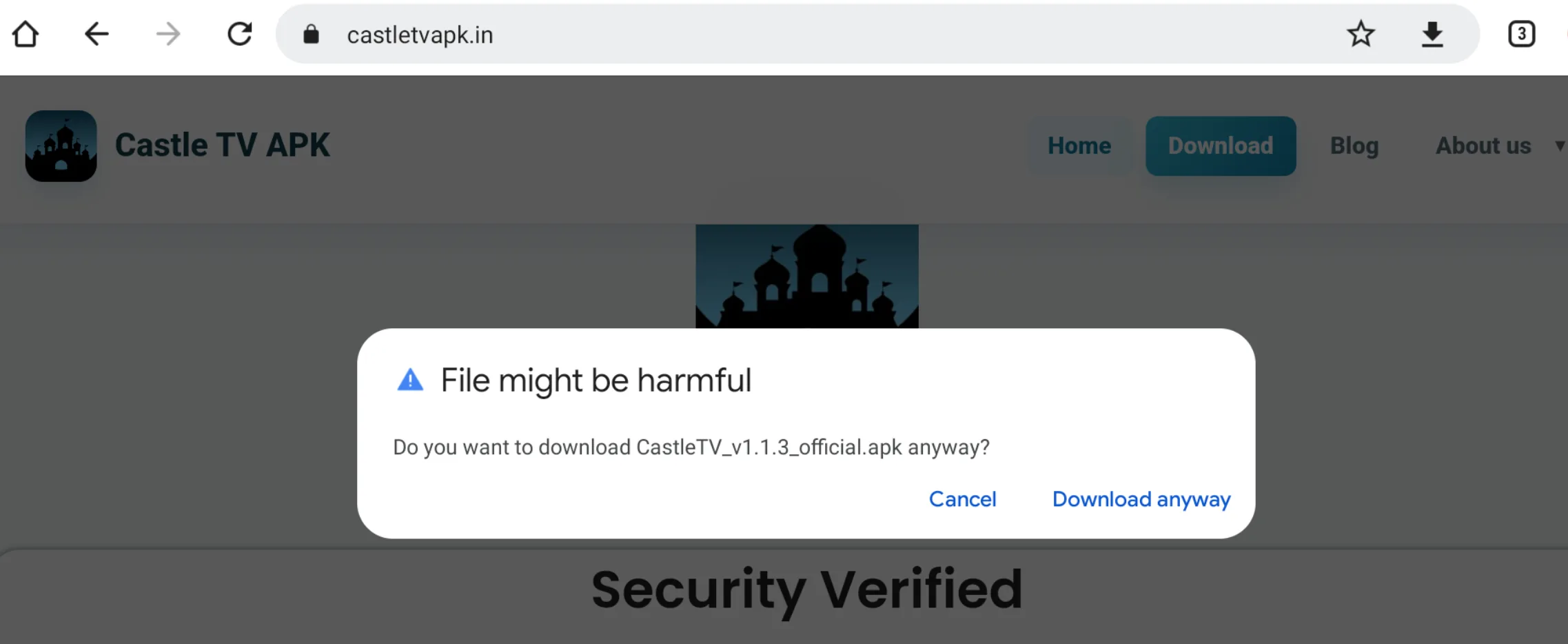
Step 2: Download Castle TV
Open your TV browser (TV Bro from the Play Store works well on big screens), visit castletvapk.net and download the Castle TV APK.
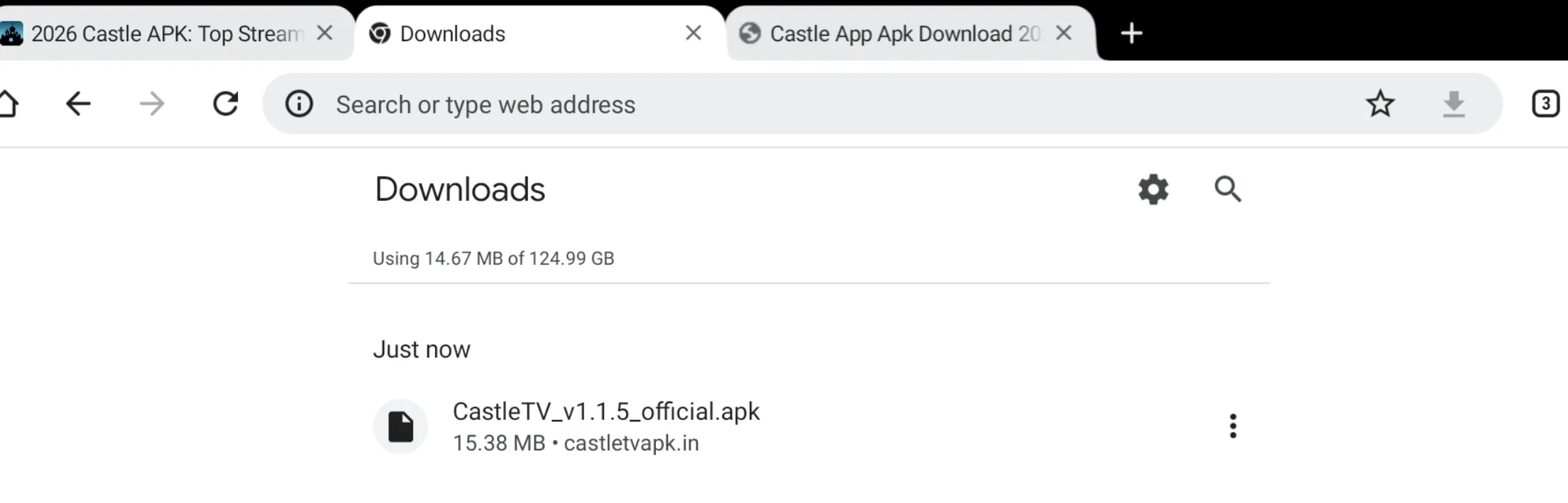
Step 3: Install
Open the downloaded file from the browser's downloads list and select Install.
Step 4: Open and Enjoy
Find Castle in your apps list, open it and start watching.
Many experienced Android TV users prefer this method because it is clean and reliable, even on older TVs.
Step 1: Get Downloader
Search for Downloader by AFTVnews in the Play Store on your TV and install it. It is free.
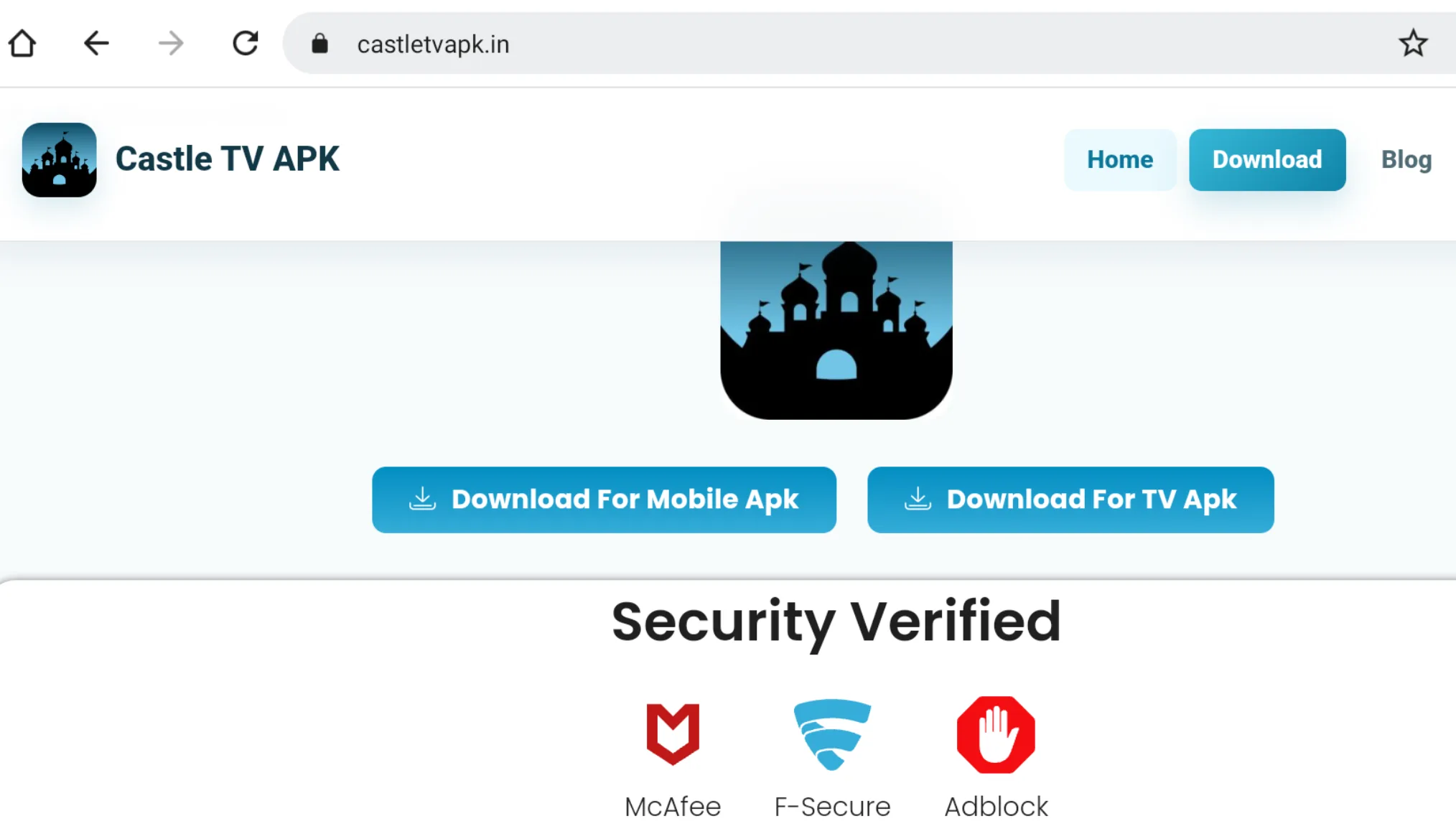
Step 2: Allow Downloader to Install Apps
Go to Settings, Device Preferences, Security and Restrictions, Unknown Sources, and turn it on for Downloader.
Step 3: Enter the Code
Open Downloader and type castletvapk.net/tv in the URL box, then select Go.
Step 4: Install
When the download finishes, select Install. After that you can delete the APK file to save space.
The best choice if your TV's internet is slow or you are setting up several TVs.
Step 1: Copy the APK
On your computer, download the Castle TV APK from this page and copy it to a USB pendrive.
Step 2: Install a File Manager on Your TV
Install File Commander, or another file manager of your choice, from the Play Store on your TV.
Step 3: Open the Pendrive
Plug the pendrive into your TV's USB port, open the file manager and go to the USB storage.
Step 4: Install Castle TV
Make sure Unknown Sources is on for the file manager, then select the Castle TV APK and install it.
Yes. No payment screen and no account needed. Install it and start watching.
Castle TV is distributed directly as an APK from its official website. Installing APK files is a built in feature of Android TV, and any of the three methods above takes only a few minutes.
No. Castle TV plays everything on its own. One APK is all you need.
Any TV or box running Android TV or Google TV with Android 6.0 or above, including models from brands like Sony, Xiaomi, OnePlus, TCL and Hisense, as well as Android TV boxes.
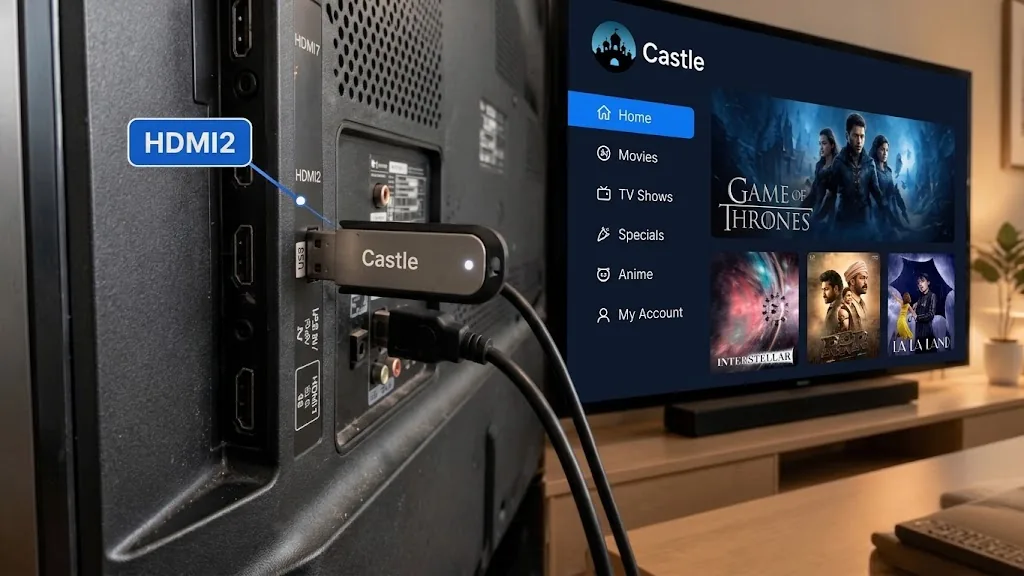
Samsung TVs run Tizen and LG TVs run webOS, and neither can install APK files. Connect a Fire TV Stick or an Android TV box to the HDMI port and install Castle on that instead.
Around 5 Mbps is enough for standard quality. For smooth HD, 10 Mbps or more is comfortable.
Download the latest Castle TV APK using any method above and install it over the existing version. Your app data stays in place.
Castle for Android TV does what a TV app should: it is easy to use with a remote, light on storage, and packed with movies, web series, live TV and cricket in your language. One 21 MB APK, no extra player and no sign-up. Download Castle TV v1.1.3 today and make your TV the best seat in the house.